Step Flow
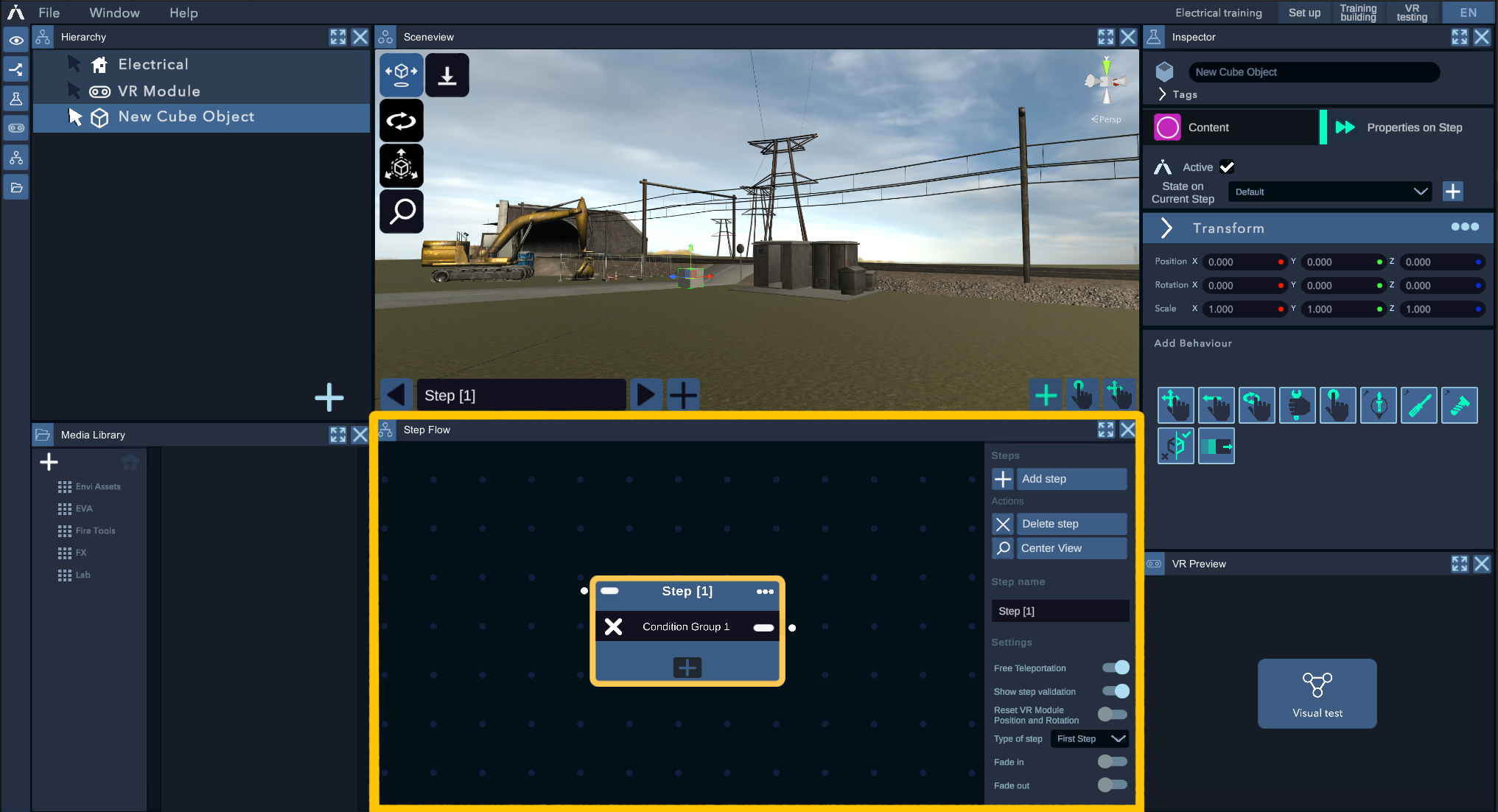
This window shows the logic of the steps in the experience. Each Step is represented by this figure:

To navigate in this view, click and hold the mouse button while moving the mouse. To zoom in and out on the Steps, use the mouse wheel.
Each Step consists of several parts.
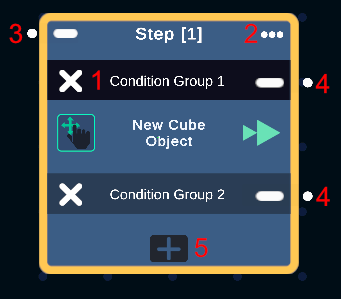
1 Condition Group
A Condition Group is a set of Conditions. Each Condition is applied to an object in the scene. All conditions within a group must be met in order to transition to the Step connected to the output of this group. For more details on Conditions, visit the section Conditions & Behaviours.
Clicking on the - to the left of the group name will destroy the Condition Group.
2 Menu
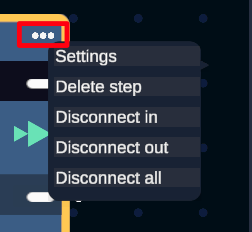
You can access the menu by clicking on the ... at the top right of the Step. Different options will be available:
*Settings*: Opens the Step options in the Inspector.
*Delete step*: Deletes the current Step.
*Disconnect in*: Removes the connection link between the previous Step and the input of this Step.
Disconnect out: Removes the output links to the following Steps. Disconnect all: Removes both the input and output links.
3 Entrée
The input allows it to be linked to the output of the previous Step. To connect two Steps, click on an output of a Condition Group from a previous Step, then click on the input of the next Step.
4 Sortie(s)
The outputs of the Step are links to other Steps if a Condition Group is validated. There is one output per Condition Group. A Step cannot have fewer than one Condition Group.
5 Add Condition Group
Add a Condition Group, along with the associated output linked to it.
Add steps
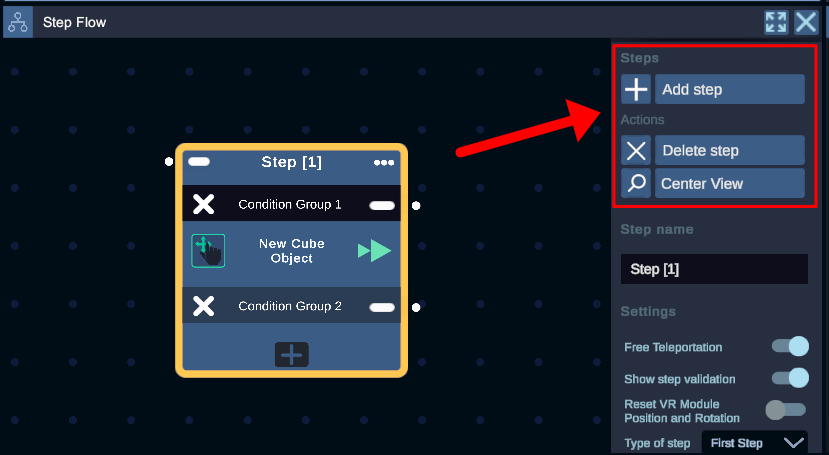
On the right side of the Step Flow, you will also find the Settings as well as a few buttons to add/remove a Step, along with a button to recenter the view on the Step Flow.
Step Options
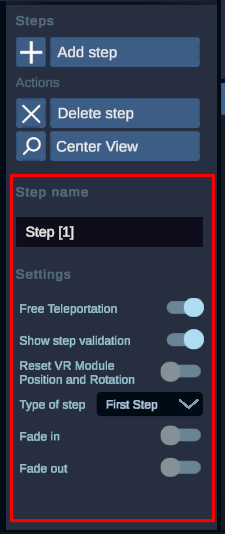
The Step options are available when a Step is selected.
Step Name: The name of the Step.
Free Teleportation: Allows or disallows teleportation in the current Step.
VR Module Position and Rotation: With the "Stay" option, the character will maintain the same position in the next Step.
Show Step Validation: Indicates whether an animation for validation will appear at the end of the Step or not.
Type of Step: Default indicates that this is a regular Step. FirstStep indicates that the Step will be the first to launch when the Reader starts (only one Step of this type can exist). LastStep indicates that this is the end of the experience.
Fade In: Will trigger a fade to black when the Step ends.
Fade Out: Will trigger a fade to black when the Step begins.
Last Step: Indicates that this Step will end the Reader playback (when the experience is launched via Practice Reader).