Media Library
This is the window showing all the imported objects that are ready to be used in the experience.
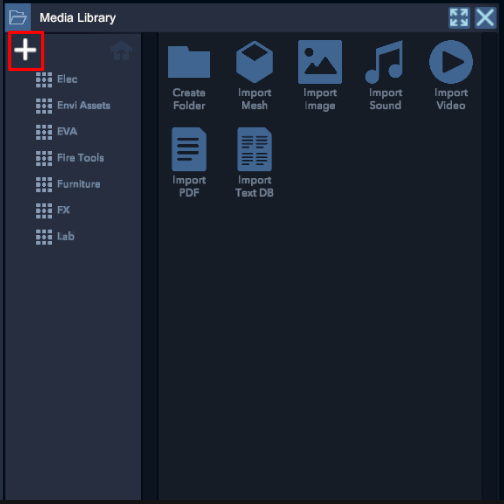

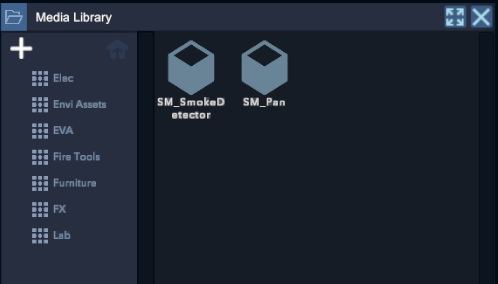
By clicking on the + at the top left, it is possible to initialize an object import or create a folder in the Media Library.
*Import Mesh*: Allows you to import a 3D object.*Compatible formats*: .3ds, .abc, .blend, .dae, .fbx, .gltf, .glfb, .obj, .ply, .stp, .stl, .wrl, .x3d.
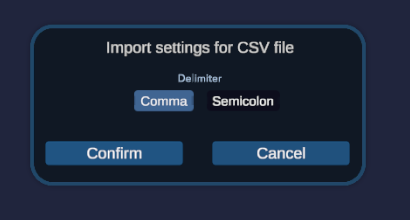
* Import Text DB*: Allows you to import a .csv file, enabling the linking of textual content with a language. Clicking on the imported textDB opens the SheetDataViewer window.
SheetData Viewer
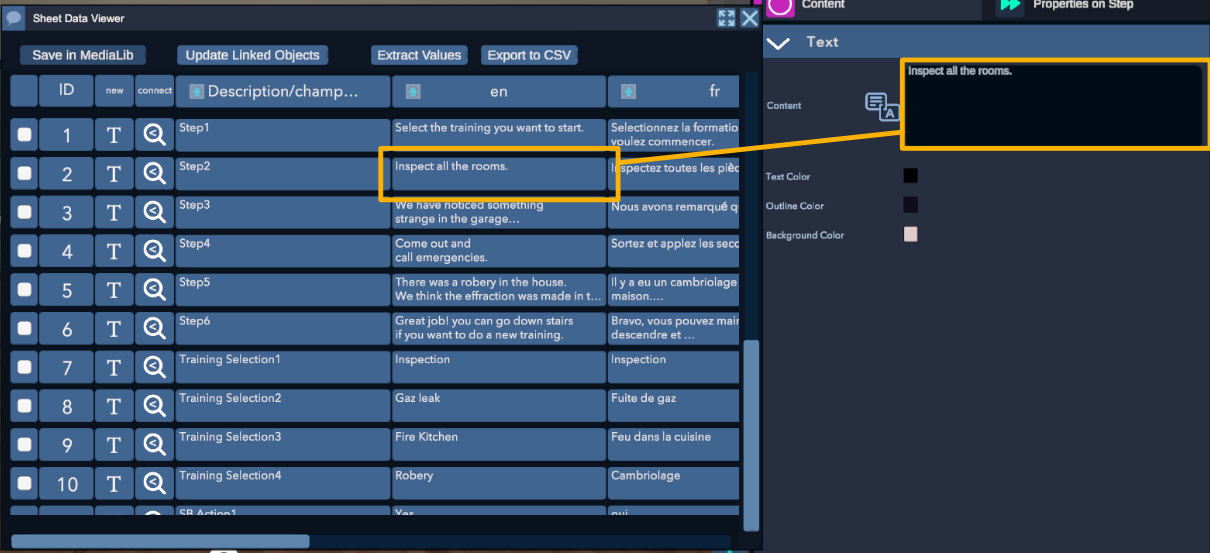
This window only opens after clicking on an imported text database (TextDB). It opens the Excel or .csv file and allows you to link cell rows with text content, for example, in a Text object.
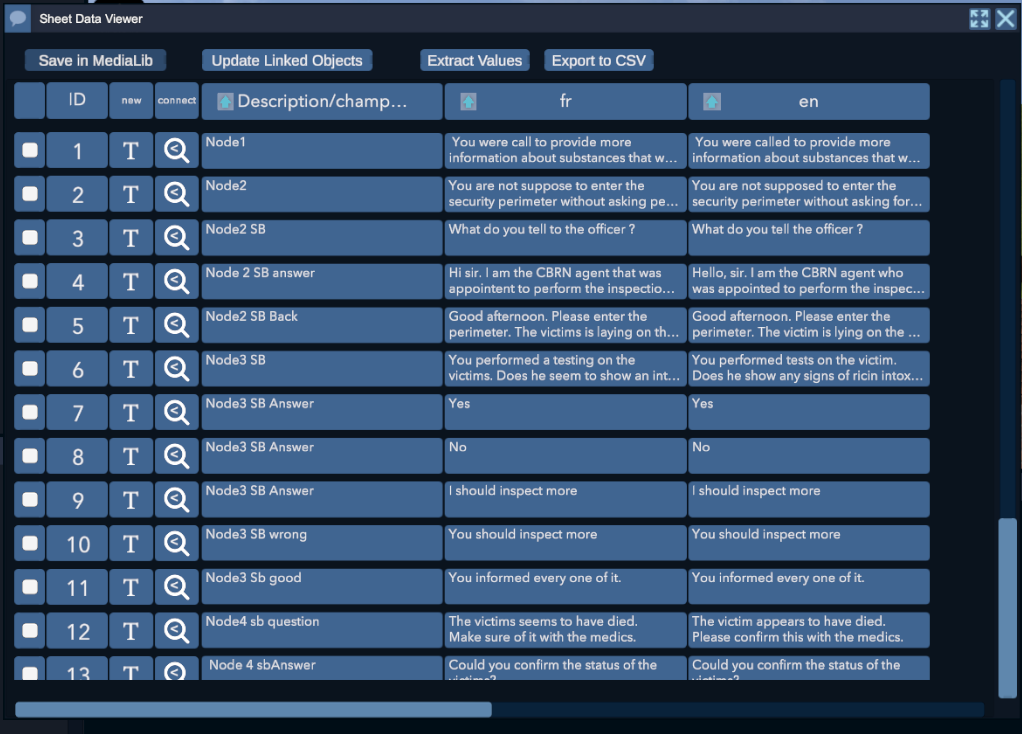

For the .csv table to work, the first row (1) should be prepared starting from the second column (B), where you add the language that will appear in Language on Logia/Practice.
You can then link a text content by clicking the icon located to the left of the text content box.
To add a new language, click on the icon next to the cell in the first row that contains the language name. You will then be able to select the language via the Language button.

The icon then switches to search mode.

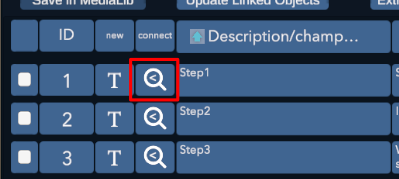

All that remains is to click the button in the Connect column for the row to be linked to this text block. The text block will be automatically filled with the text corresponding to the intersection of the connected row and the language selected in Language. You can also add an object with a text content component by clicking on New Text Object in the new column.