Avatar and physical damage
This module allows simulating injuries or state alterations associated with errors made by the operator. The module allows assigning these alterations to different parts of the user's virtual body. These state alterations (burns, fractures, etc.) are referred to as Hazards in the explanations below.
Initialisation
The screenshot below shows the configuration window of the module. This window allows you to define the avatar's state at the beginning of a Node.
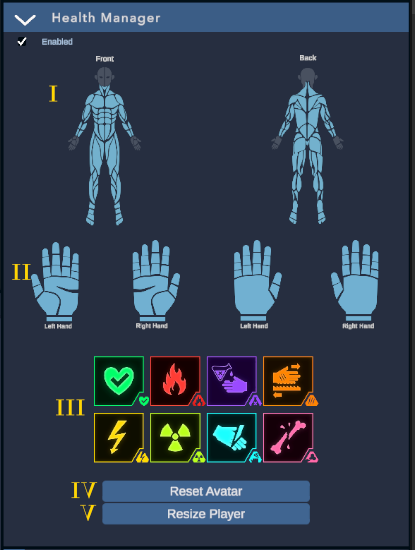
I. Selection of Avatar Body Parts
Select one or more parts of the avatar's body that you wish to alter.
II. Selection of Hand Parts
Select one or more parts of the avatar's hands that you wish to alter.
III. Selection of Hazard
Applies the selected state to the avatar parts previously selected.
From left to right, top to bottom:
Cyan - Cut: Cuts a limb/phalanx.
Red - Burn: Burns the selected limb/phalanx.
Yellow - Leak: Creates a trace of a substance (chemical, etc.) in yellow on the selected surface.
Orange - Tear: Creates a tear mark in clothing on the selected surface.
Pink - Fracture: Simulates a fracture (broken bone) on the selected limb/phalanx.
Green - Healing: Heals the selected surface. Use this on a node following the one where the avatar was altered to simulate healing.
Note that Hazards are consistent with each other: breaking a bone or cutting off a limb will limit the application of other Hazards to that part afterward (e.g., cutting the left shoulder will prevent cuts from appearing on the left hand).
IV. Reset Avatar
Heals all parts of the avatar without considering the current selection.
V. Calculate Player Size for Avatar
Once your user is in VR, you can adjust their avatar size by asking the user to stand up, look straight ahead, and press this button. The Avatar > Resize option in the Static Menu allows you to perform the same action. Please note that, unlike other options, this one must be used while the VR Preview is active.
Usage
This way, you can simulate injuries as follows:
Define a condition on Node A (Move, etc.).
Create Node B and link it to Node A, so that the experience progresses to Node B when the condition set on Node A is met.
Configure the avatar using the features described above, so that the user starts Node B with their avatar altered.
Result: The user fulfills the condition linked to Node A, and their avatar is altered accordingly.